

Tips for Using Google Docs
Doc Sharing
If you have written in a different processor (like Word, Apple Pages, or Substack) I suggest copying and pasting into a Google Doc as opposed to converting files back and forth.
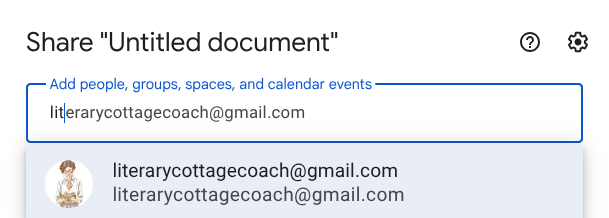
You can share a doc with only me by clicking the “share” button on the top right corner and entering my email address: literarycottagecoach@gmail.com

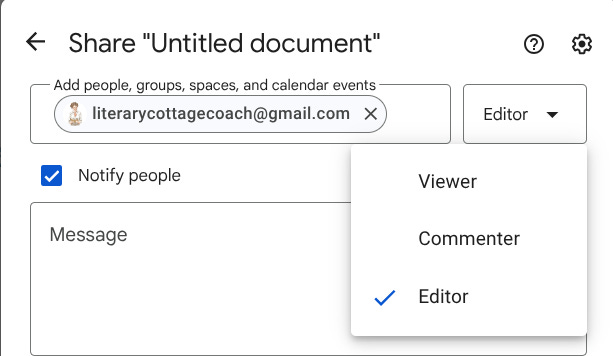
After entering my email address, you can choose from the drop-down menu what kind of access you are granting.
If you give me “commenter” status, all changes I make will await approval from the author automatically.
If you give me “editor” status, I will turn on the suggesting tool before making changes so you can approve each change.
Communication within Docs
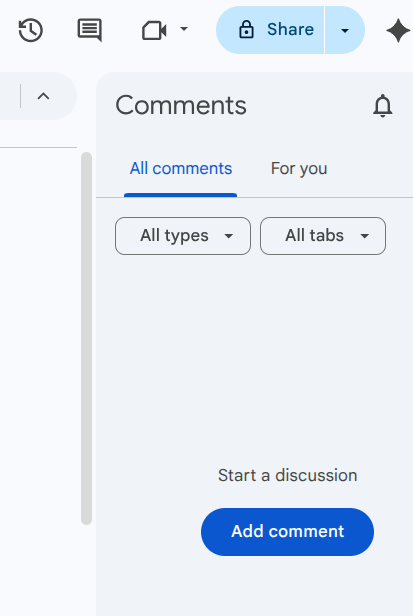
Shared documents have a comment button at the top. This looks like a dialogue icon and allows you to leave and read comments within the document. You can also highlight a word or sentence in the doc and leave a comment that way.
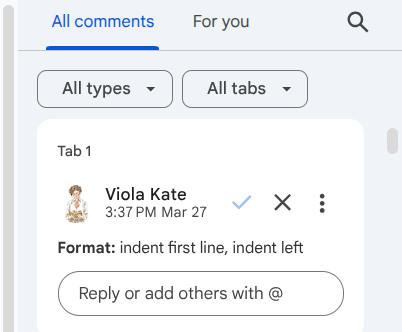
I will leave comments when I think edits need to be explained or when I have a fun reaction to the writing.
Please do not accept changes I’ve made or make your own changes until I have completed the entire doc. If I have tagged you in a comment because I have a query, you may respond to the comment, but please don’t make changes to the document.
When I am Done
When I have completed proofreading, I will leave a comment at the end (“I’m finished!”) and tag you so you will get an email. Then you can:
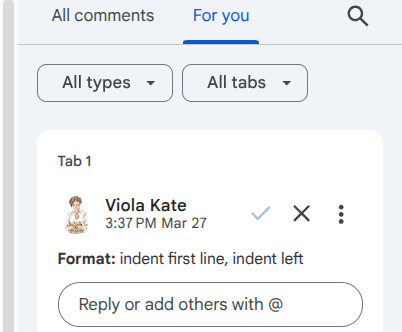
Tap the comment icon to view and accept ✔ or reject ❌ each individual edit
Tap the comment icon and navigate to the “for you” tab to see only where I had questions
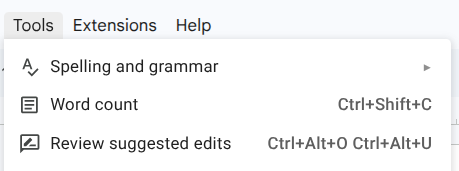
Go to Tools > Review Suggested Edits. From here you can Preview ‘Accept all’ or ‘Reject all’ and choose one of the options if you wish.
If you have any questions after this part of the process, please email, DM, or tag me in a comment in the doc, and I will get back to you during my next office hours!